Deep dive into Git
I really think this is one of the most important tools when you are working on a software project you need to master or at least really grasp the basic concept of Git, so without further ado, let me walk you through how Git works and some tips and tricks.
What is Git ? it’s a version tracker, like others before it (SVN, CVS…) what sets Git apart is its distributed version control model, the Git “thinking”.
Git vs others
Unlike others, Git doesn’t store changes as a series of delta steps but as snapshot of all files at a given point, which is more powerfull since you clone the repo you have access to all the commit and file history you don’t have to ask the server to get to a sepcific version (CVS and SVN store delta step by step and require a connection).
How work Git underneath
Git use 3 section for versioning:
%%{init: {"flowchart": {"curve": "stepBefore"}, "themeVariables": {"fontSize": "18px"}} }%%

flowchart TB
    subgraph repo["./personnal_project"]
        style repo stroke-dasharray: 5 5, fill:#fffefc,stroke:#854F0B,color:#f2f0ed

        subgraph workdir["Working directory"]
            style workdir fill:#80b8de,stroke:#000000,color:#E1F5EE
            file["index.html"]
                style file fill:#80b8de,stroke:#000000,color:#E1F5EE
        end

        subgraph index["Index"]
            style index stroke-dasharray: 5 5, fill:#aa91db,stroke:#3C3489,color:#EEEDFE
            file1:::hidden
        end

        subgraph local["Local history"]
            style local stroke-dasharray: 5 5, fill:#fae34b,stroke:#854F0B,color:#FAEEDA
            file2:::hidden
        end

        workdir --> index
        index --> local
    end

    classDef hidden fill-opacity:0, stroke-opacity:0, opacity: 0;
    linkStyle default stroke:#3b3a3a,stroke-width:2px
Both the local history and the index are stored in the .git folder. But what are these 3 components ?
- Working directory: This is the folder you work in, containing all your files. Git doesn’t manage this area directly.
- Index: This area is for carefully selecting what you want to include in the fowup commit (your next step in the history). it’s the staging area, the index is transitory.
- Local History: This is where Git store the commit history.
To create a Git repo you can use git init -b main command.
To stage a specific file into the index use git add <file1> <file2>. To stage all changes in the current project use git add ..
Then the next step it commit to the history with git commit -m "commit message" or if you have already used Git here is the typical setps you know:
%%{init: {"sequence": {"actorFontSize": 14, "messageFontSize": 13}, "themeVariables": {"fontSize": "14px", "sequenceNumberColor": "#ffffff", "actorBkg": "#044861", "actorTextColor": "#E1F5EE", "signalColor": "#044861", "signalTextColor": "#000000"}} }%%
sequenceDiagram
    workingdir->>index: git add index.html
    index->>localhistory: git commit -m "add index of the website"
Without the -m Git will ask you a message in you default editor.
Git also have the move mv and remove rm commands with remove you can unstaged a file using the git rm --cached <file> command.
to see the history of the commits you can use git log or git log --oneline, then subsequently use git show <commit-id> to see the specific commit change and message
$ git log --oneline
1170a59 (HEAD -> main) First file of the website

$ git show 1170a59
commit 1170a594c97a7c4b4bfff77ad35230b81f833a41 (HEAD -> main)
Author: Guillaume Dorschner <guillaume.dorschner@icloud.com>
Date:   Thu Mar 26 19:56:41 2026 +0100

    First file of the website
diff --git a/index.html b/index.html
new file mode 100644
index 0000000..e69de29
You can use the --follow flag to track a specific file thourghout the history.
git diff displays changes between your working directory and the staging area. You can also see the differences between the staged files with git diff --cached.
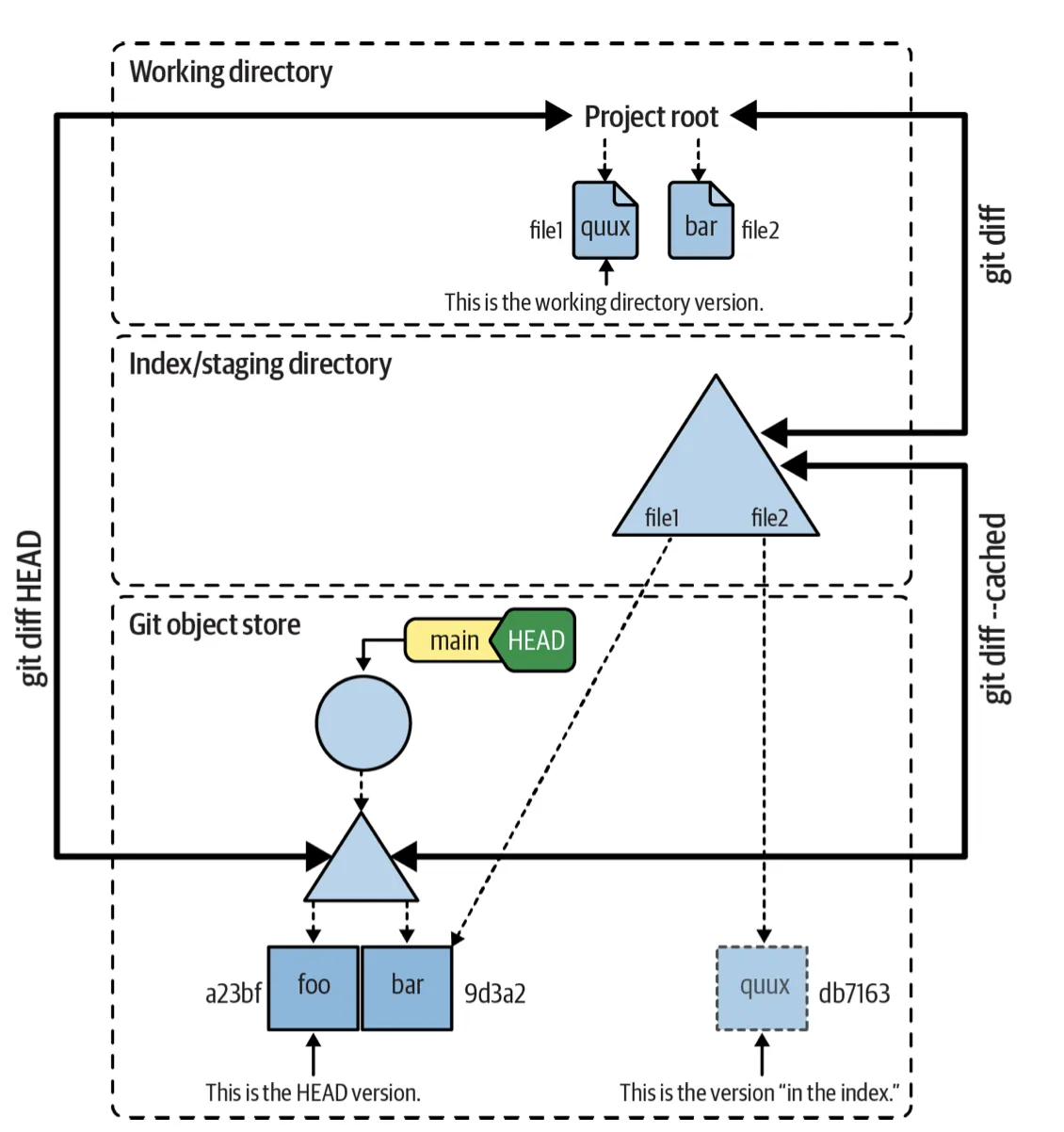
Also you can view the difference between commit just like the diff in bash like this.
git diff <A-commit> <B-commit>Structure
your_project
├── .git                    # hidden folder generate by Git
│   ├── config
│   ├── description
│   ├── HEAD
│   ├── hooks
│   │   ├── commit-msg.sample
│   │   ├── post-update.sample
│   │   ├── pre-commit.sample
│   │   ├── pre-merge-commit.sample
│   │   ├── pre-push.sample
│   │   └── pre-rebase.sample
│   ├── index
│   ├── info
│   │   └── exclude
│   ├── logs
│   │   ├── HEAD
│   │   └── refs
│   │       └── heads
│   │           └── main
│   ├── objects
│   │   ├── 0a
│   │   │   └── 5568b3eb72786b7d025f317905c26d9b2a59ce
│   │   ├── 11
│   │   │   └── e937b1c0756a158c66bb67e04e0a3646a9253c
│   │   ├── info
│   │   └── pack
│   └── refs
│       ├── heads
│       └── tags
│ # the reset of the files are your working dir
└── index.html
Objects
Git stores data as a collection of objects and uses packfiles to efficiently compress and store them more info in Git documentation here & blog on the heristics.
Git uses a key-value storage model:
- Key: a cryptographic hash (historically SHA-1, now optionally SHA-256)
- Value: the content of the object
Each object is identified by the hash of its content. This guarantees content integrity and identical content is stored once. Objects are stored under .git/objects/ using their hash:
- The first 2 characters form the directory name (that improve filesystem efficiency if there is too many files in the same directory that ten to slow down filesystem).
- The remaining characters form the filename.
├── f9
│   └── abef842f9a4b17b614de945456da38a5d2009d
├── fb
│   ├── 2d94894b96a39f2504d6a8152150c6c1de5b1d
│   └── 7ac4652aae96dac4968621df8a5833fdae95b2
├── fc
│   └── 4d19bb2e66650d4f3dbe7f6907eb3ba0bcdd09
These are called loose objects. Each loose object is compressed individually using zlib algo DEFLATE.
Packfiles
When a repository grows this storage becomes inefficient. To solve this, it uses packfiles.
Packfiles combine objects into a single file .pack it apply compression and delta encoding.
-
Blobs
Holds a file’s raw data, without any metadata associted but the files (not even the filename).
-
Trees
Records contents of a single level in the directory hierarchie, e.g. lists files and subtrees.
-
Commits
Metadata for each change introduced into the repo include author, committer, date, message. It point to a tree objects, and also one or more parent like a linked list.
-
Tags
Named references that point to a specific commit. They are commonly used to mark releases in a projects.
You can think of the Git structure like this:
graph TD
%%{init: {'theme': 'light', 'themeVariables': {'darkMode': true}, "flowchart" : { "curve" : "stepBefore" } } }%%
    commit["commit 1492<br>Initial commit"]
    tag@{ shape: tri, label: "tree 8675309"}

    blob1["blob dead23<br>Four score and seven ..."]
    blob2["blob feeb1e<br>Mary had a little lamb"]

    tag{"tag v1.0<br>object: 2504624"}
    branch("master")

    tag --> commit
    branch --> commit
    commit --> tree
    tree --> blob1
    tree --> blob2

    style branch fill:#fae34b,stroke:#1e1e20,stroke-width:2px,color:#000000
    style tag fill:#0171bc,stroke:#1e1e20,stroke-width:2px,color:#e0f2fe
    style commit fill:#aa91db,stroke:#1e1e20,stroke-width:2px,color:#e0f2fe
    style tree fill:#aa91db,stroke:#1e1e20,stroke-width:2px,color:#e0f2fe
    style blob1 fill:#80b8de,stroke:#1e1e20,stroke-width:2px,color:#e0f2fe
    style blob2 fill:#80b8de,stroke:#1e1e20,stroke-width:2px,color:#e0f2fe
When you copy a folder inside a Git repository, the files may appear duplicated, but internally Git does not duplicate the data. As said earlier Git stores content using hashes. If two files or directories have identical content, they reference the same objects. for example If you have a folder and you copy it into another location, the folder structure inside the copy will remain the same as in the original, so the tree will still exist:
A/
    file1.txt
    file2.txt
A/
    file1.txt
    file2.txt
    B/
        other.txt
        A/
            file1.txt
            file2.txt
Internaly Git is like
graph TD
%%{init: {'theme': 'dark', 'themeVariables': {'darkMode': true}, "flowchart" : { "curve" : "stepBefore" } } }%%
    tree1["Main Tree"]
    tree2["A Tree"]
    bloba["A Blob"]
    blobb["Other blob"]

    tree1 --> tree2
    tree1 --> bloba
    tree1 --> blobb
    tree2 --> bloba

    style tree1 fill:#aa91db,stroke:#1e1e20,stroke-width:2px,color:#e0f2fe
    style tree2 fill:#aa91db,stroke:#1e1e20,stroke-width:2px,color:#e0f2fe
    style bloba fill:#80b8de,stroke:#1e1e20,stroke-width:2px,color:#e0f2fe
    style blobb fill:#80b8de,stroke:#1e1e20,stroke-width:2px,color:#e0f2fe
Branch
Branches allow you to develop multiple features in parallel without affecting the main codebase. Understanding basic Git workflows is essential, Git Flow is one of the most widely used models see the example bellow:
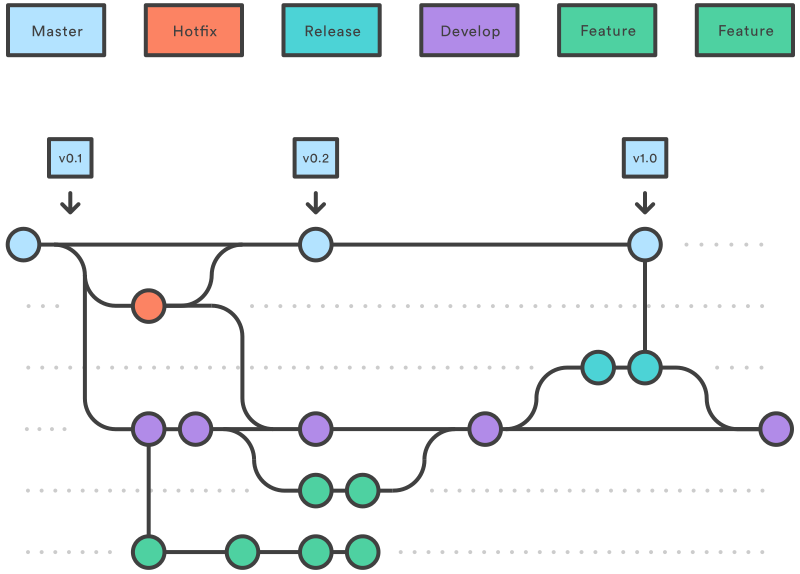
- Branches can also represent specific releases, so customers can stick to a particular version.
- Branches can also be tied to individual developers (common in small projects [common but not recommended]).
You can name branch like this feat/great-button fix/bug-hot-reload chore/fix-typos. Using this you can select branch more easily git show-branch 'bug/*'.
To switch branches, use git switch <branch-name>. You can also move to a previous commit using a relative reference, for example git switch dev~5 to go back 5 commits. Note that doing this will detach HEAD, meaning HEAD points directly to that specific commit instead of a branch. To navigate into commits you can use ^N (e.g. ^2 goes to the second parent of a merge commit). On the other hand ~2 will go to the grand parent commit.
HEAD
It’s a pointer to your current position in the Git history.
- Usually, HEAD points to a branch
- Sometimes it points directly to a commit (detached HEAD)
git switch dev~2HEAD is detached and points to an older commit. During operations like rebase, HEAD moves as commits are replayed (pick, squash, etc.).
Commits made in detached HEAD state are unknown to any branch and therefore unreachable. If you don’t attach them to a branch, Git will eventually garbage collect them.
So what is the differences between a branch and a tags ?
Tags
Tags are link to a specific commit and are immutable. They are use to mark a specific point in the history, like version release. Don’t name tags like your branches it’s not a good idea.
Create branches
you can see you branch git branch and to create branches:
git branch <new-branch-name> <branch-use-as-base-for-the-new-one>: create a new branchgit checkout -b <new-branch-name>: create and switch to new branch name
View branches
git branch: local branchesgit branch -r: remote branchesgit branch -a: all branches
Show branch
git show-branchgit show-branch <name>
Delete a branch
git branch -d <branch-name>: delete a local branch, use -D to force delete.
Merge
Merge allows you to integrate a feature branch into another branch.
git switch main # move to the branch you want the merge to occure
git merge <feat/button>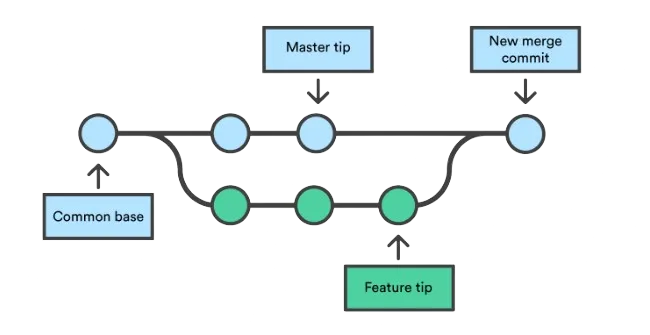
I recommend committing all changes before merging otherwise conflicts may arise and uncommitted modifications can be lost.
If you merge branch that have differences in the same files a conflict will appears. So Git will need your intervention since it doesn’t understand your code only managed it. Git come with three-way diff (conflict resolution markers). It will be as follow:
<!DOCTYPE html>
<html lang="en">
  <body>
    <h1>Welcome to My Website</h1>

    <<<<<<< HEAD
    <p>This paragraph was edited locally in your branch.</p>
    =======
    <p>This paragraph was edited remotely in the other branch.</p>
    >>>>>>> feature-branch
  </body>
</html>
use git diff --check to be sure all the markers are deleted and you have finished the conflict resolution.
You screw up the merge you can retry using git checkout -m, or you want to cancel it do git merge --abort.
Now if you already have it commited use the specific HEAD made for that git reset --hard ORIG_HEAD, that will reset to the state before the merge.
Strategy of merges
Already up to date
%%{ init : { "theme" : "default", "flowchart" : { "curve" : "linear" }}}%%

flowchart RL
    main((main))
    a1((A))
    a2((B))
    a3((C))
    b1((A))
    b2((B))
    b3((C))
    merge((merge))

merge --> a3 --> a2 --> a1 --> main
merge --> b3 --> b2 --> b1 --> main
Fast-forward merge
Before
%%{ init : { "theme" : "default", "flowchart" : { "curve" : "linear" }}}%%

flowchart RL
    main((main))
    a1((A))
    a2((B))
    a3((C))
    merge((merge))

main --> a1
merge --> a3
a3 --> a2 --> a1

style main fill:#fae34b,stroke:#1e1e20,stroke-width:2px,color:#fffff
style merge fill:#fae34b,stroke:#1e1e20,stroke-width:2px
After
%%{ init : { "theme" : "default", "flowchart" : { "curve" : "linear" }}}%%

flowchart RL
    main((main))
    a1((A))
    a2((B))
    a3((C))
    merge((merge))

main --> a3
merge --> a3
a3 --> a2 --> a1

style main fill:#fae34b,stroke:#1e1e20,stroke-width:2px,color:#fffff
style merge fill:#fae34b,stroke:#1e1e20,stroke-width:2px,color:#fffff
There are other type of merge (you don’t chose the type of merge Git does it automaticly):
-
Merge-ort Modern default merge strategy. Optimized for performance and correctness, especially on large repositories. It improves conflict detection, can handles renames better and is generally faster and more reliable.
-
Resolve Default two-branch merge strategy (historically Git’s standard). It performs a three-way merge between the common ancestor and the two branches, automatically combining non-conflicting changes. If conflicts occur, they must be resolved manually. Suitable for simple histories involving only two branches.
-
Octopus Used to merge more than two branches at once e.g.
git merge branch1 branch2 branch3. It succeeds only if there are no conflicts else Git aborts the merge. Typically used for integrating multiple independent topic branches that do not overlap.
Merge Base
This command helps to identify the best common ancestors for merging, reducing the chances of conflicts and ensuring a smoother integration process.
git merge-base original-branch new-branchRebase
Rebase allows you to place one branch behind another. Before rebase:
%%{ init : { "theme" : "default", "flowchart" : { "curve" : "linear" }}}%%
flowchart RL
    main((main))
    a1((A))
    a2((B))
    f1((F1))
    f2((F2))
    feature((feature))

    main --> a2 --> a1
    feature --> f2 --> f1 --> a1

    style main fill:#fae34b,stroke:#1e1e20,stroke-width:2px
    style feature fill:#fae34b,stroke:#1e1e20,stroke-width:2px
After git rebase feature
%%{ init : { "theme" : "default", "flowchart" : { "curve" : "linear" }}}%%
flowchart RL
    main((main))
    a1((A))
    a2((B))
    f1p((F1'))
    f2p((F2'))
    feature((feature))

    main --> f2p
    feature --> f2p --> f1p --> a2 --> a1

    style main fill:#fae34b,stroke:#1e1e20,stroke-width:2px
    style feature fill:#fae34b,stroke:#1e1e20,stroke-width:2px
Rewrite commit history
Rebase
The rebase command is used to edit and simplify your commit history. It is powerful but should be used carefully. Only use it on local or feature branches. If multiple developers share the same branch, rewriting history will cause conflicts and force others to reconcile diverging histories.
- squash: combine multiple commits into a single commit
- drop: remove a commit from history
- reword: change a commit message
- reorder: change the order of commits
- you can reorder the commit history by chaning the order of the lines
You want to change the history of you current branch since the creation simple use git rebase -i dev here dev refers to the base branch from which your current branch was created. This command opens an editor listing the commits to be modified. Replace pick with the desired operation.
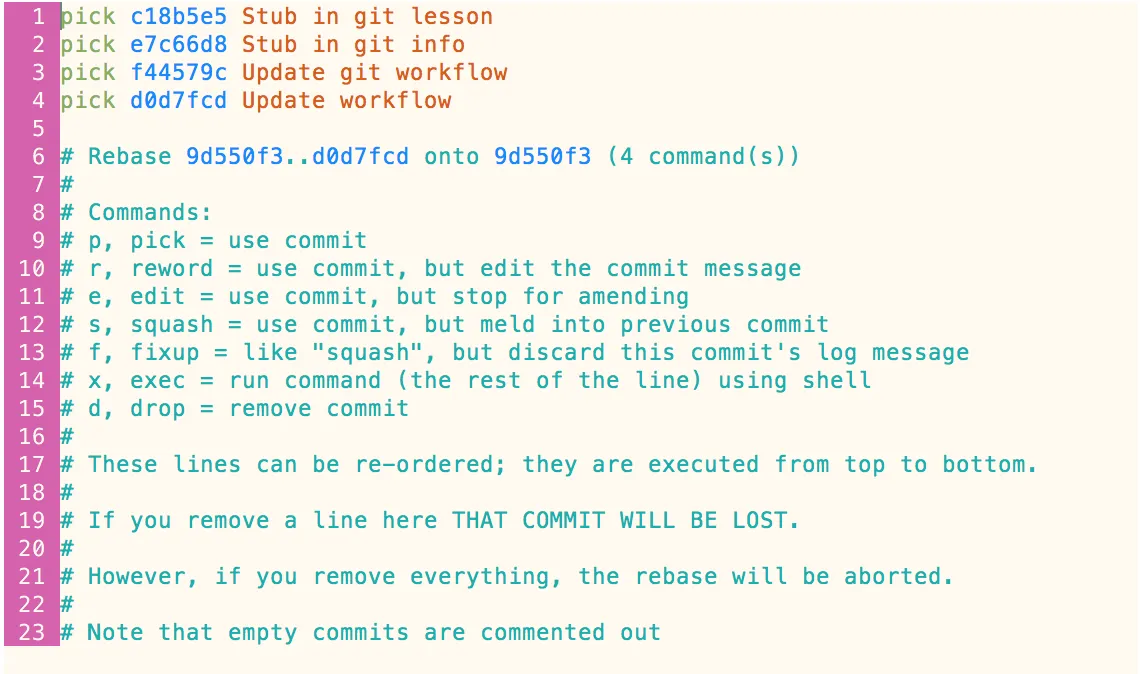
Rebasing may introduce conflicts. Resolve them manually, then continue the process with git rebase --continue. You can also cancel your change with the git rebase --abort.
Revert
As this name sugject this command only reverts a specific commit so the B’ will reverts the changes introduced by B but won’t change the commits C and D.
%%{ init : { "theme" : "default", "flowchart" : { "curve" : "linear" }}}%%

flowchart RL
    a1((A))
    a2((B))
    a3((C))
    a4((D))
    a5((B'))

a5 --> a4 --> a3 --> a2 --> a1
Amend
You commited before fixing typos or missing feature use git commit --amend that will overwrites the last commit as if you had just made it.
Reset
be carefull with this one you can lose files. This command will reset the head of the branch, use reset like git reset --<flag> there is 3 main type of reset:
| flag | Work dir | Index | Head |
|---|---|---|---|
| soft | no | yes | yes |
| mixed | yes | no | yes |
| hard | yes | yes | yes |
Restore files
This can be quite handy for revert or get specific files from a commit:
git restore feat/button~4 -- index.js # -- help bash to understand what follow is not an flag but an optionFor example you just rm a use flie you can recover it
git restore HEAD -- file.jsSearch
Bisect
Did you know Git can find the problematic commit for you? With bisect Git will search using a binary search the commit that is responcible for the new bug you have found:
git bisect # begin the bisect

git bisect good # tell if the commit is good or bad
git bisect bad
Use git bisect reset to exit the bisect mode and git bisect visualize --pretty=online to see the history. But even better you can tell Git which command to test.
git bisect run <command_to_test> # Git will use the linux will return code 0 is good and between 1...127 bad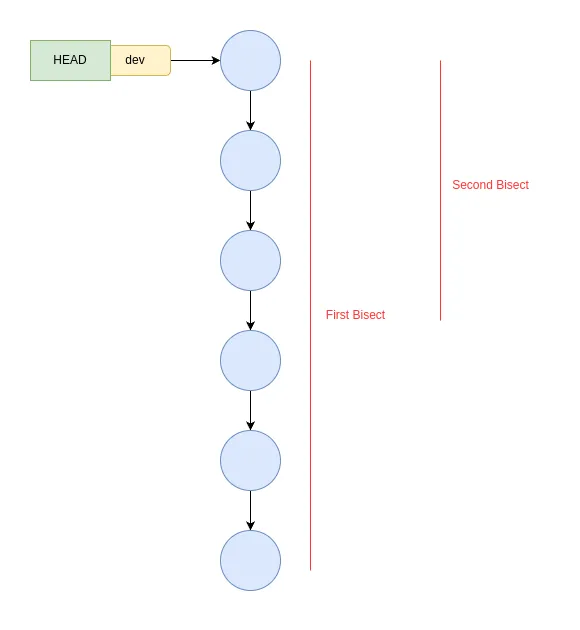
Blame
Found a bug and want to know who introduced it? Use:
git blame <file>This shows, line by line, the commit and author responsible for the current content of the file.
-S
More powerful than git blame, the -S option lets you search the history for changes that added or removed a specific string. For regex-based searches, use -G.
Example: find all commits that touched the string TODO:
git log -S "TODO" <file>There is also the git-grep to search a specific point in history.
Usefull
Stash
A brilliant feature that allow you temporarily save modifications without commiting. Useful when you need to switch context quickly like hotfix on the main. Git stash won’t track untrack file by default.
git stash       # to save, yo can use -m to passe a messsage
git stash -a    # stash all file even untracks
git stash pop   # get and delete the last stash
Reflog
I just learn this and i really think thats essential do know. Reflog can recover loss commits. it the history of all HEAD movements:
git reflog
088c068d (HEAD -> feat/upgrade_button) HEAD@{0}: commit: wip
a5902e59 HEAD@{1}: commit: draft almost finished
ca30c822 HEAD@{2}: commit: restructure
75aff7e7 HEAD@{3}: checkout: moving from dev to feat/upgrade_button
ec8aff82 (origin/dev, dev) HEAD@{4}: commit (amend): feat: vim configuration
2f92ab7a HEAD@{5}: pull: Fast-forward
once you have find the sha of the commit you can git reset --hard <sha_commit> or git reset --hard HEAD@{4}.
Cherry pick
Cherry pick allow you to select specific change from a commit into the current branch.
git cherry-pick master~5
git cherry-pick <commit-A>...<commit-B>
Remote
Hosted repository
Plateform like Gitlab and Github are bare repo. By doing git init --bare on a server you just created your self hosted repo, but this is specific, bare repos shouldn’t be edited directly and don’t support commits also the repo structure is different, you only push (commit, branch etc).
%%{init: {"sequence": {"actorFontSize": 14, "messageFontSize": 13}, "themeVariables": {"fontSize": "14px", "sequenceNumberColor": "#ffffff", "actorBkg": "#044861", "actorTextColor": "#E1F5EE", "signalColor": "#044861", "signalTextColor": "#000000"}} }%%

sequenceDiagram
    box Remote
    participant Remote as Remote Repository
    end
    box Local
    participant Git as Local History (.git/)
    participant Index as Index / Staging
    participant Work as Working Directory
    end

    %% Clone
    Remote->>Git: git clone
    Git->>Work: checkout files

    %% Fetch
    Remote->>Git: git fetch

    %% Pull (fetch + merge)
    Remote->>Git: git pull (fetch)
    Git->>Work: git merge

    %% Add
    Work->>Index: git add

    %% Commit
    Index->>Git: git commit

    %% Push
    Git->>Remote: git push

    %% ls-remote
    Git->>Remote: git ls-remote
remotes
Git use the branch named remotes as a proxy that contain the history of the remote orgin.
commands:
git push: Send your local commits to the remote repository.git fetch: Download new commits, branches, and tags from the remote without modifying your current branch.git pull:git fetch+ merge (or rebase, depending on configuration) into your current branch.git remote update: Fetch updates for all configured remotes (or a group of remotes), without merging anything.
So you can use fetch to impect change coming from the remote by checkout origin/feat/button. You can also use the git pull --rebase and that will change the merge of the pull into a rebase. Both are valide I personaly use merge out of habit. If you prefer you can change Git’s behavior with branch.autosetuprebase true in your Git config. Git don’t manage right it leave that to others tools like ssh.
Branches
git push -D <remote_name> <branch>: to remove a remove branch
Optional There is other cool command:
git prune: cleans unreachable local objects garbage collection.git remote prune <remote>: removes origin branch “proxys” that no longer exist.
Github
TODO: add this here
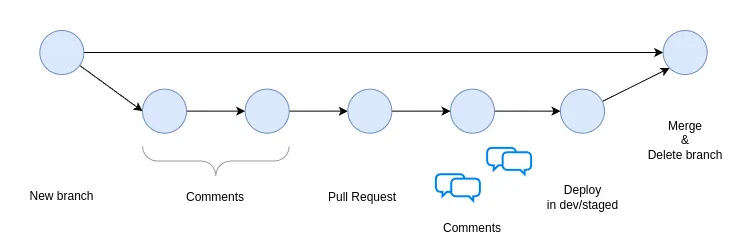
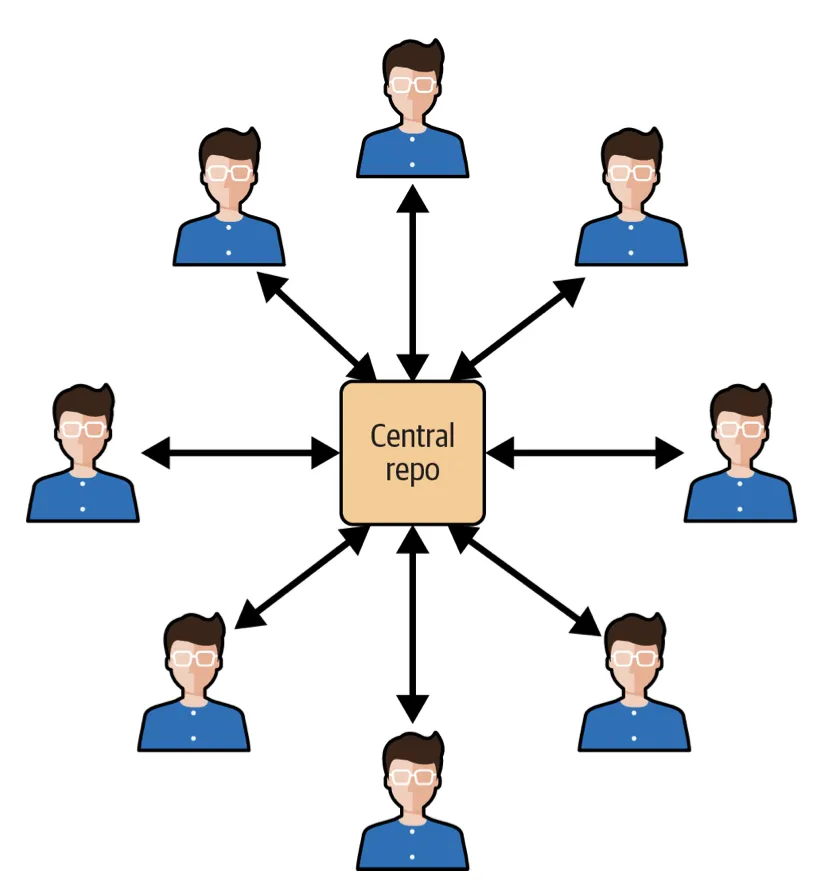
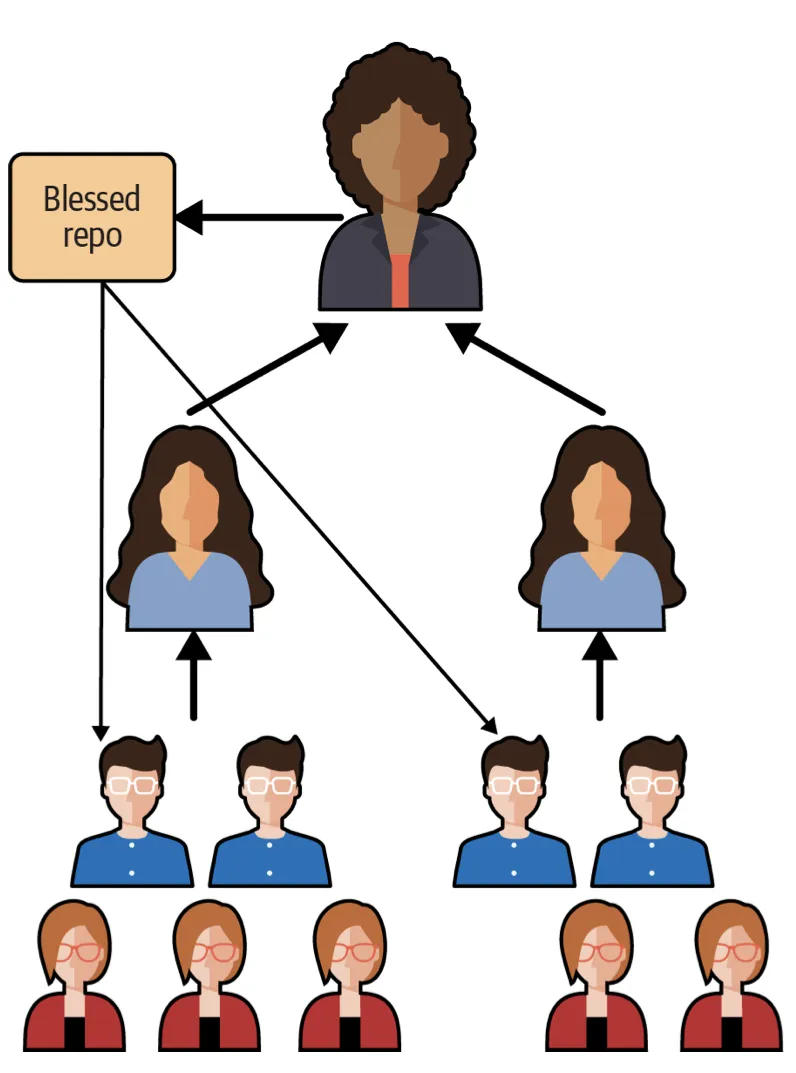
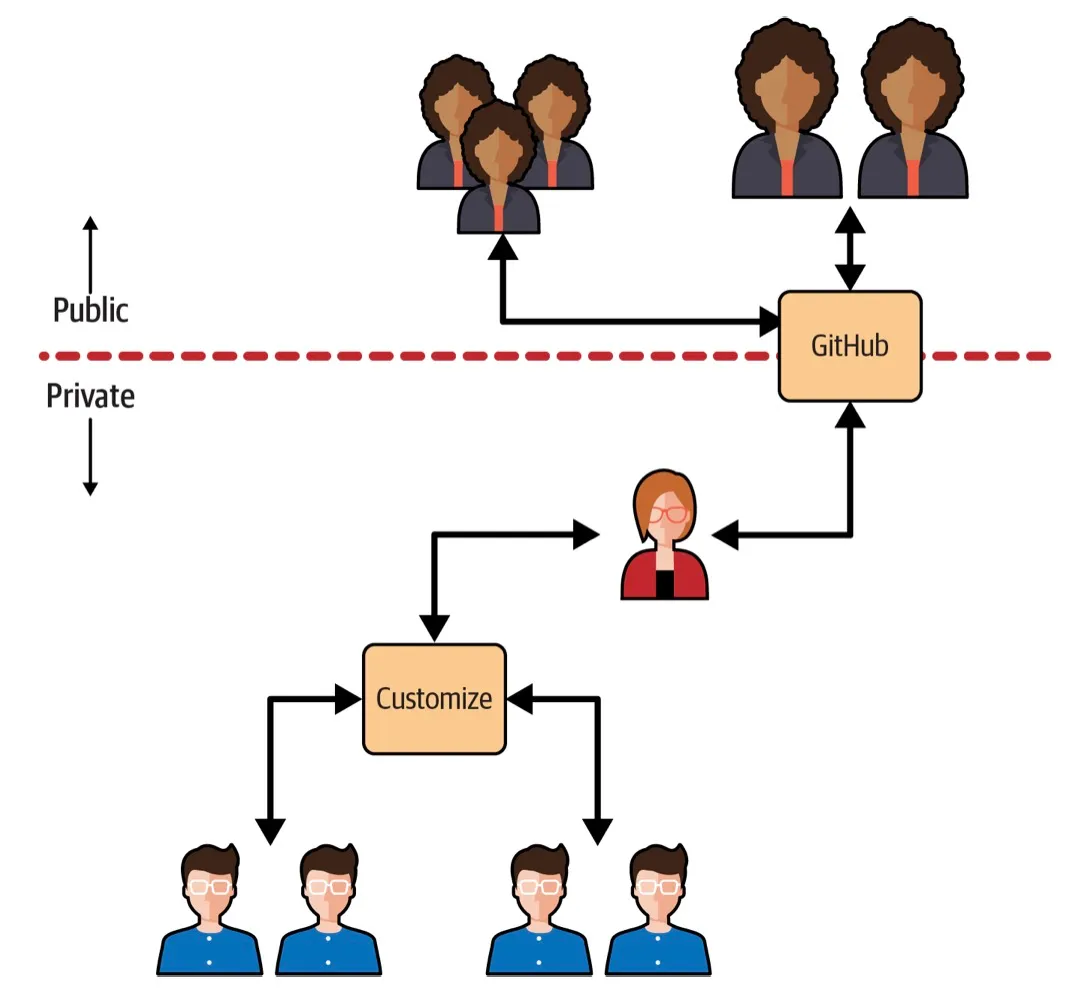
There are the different type of workflow
TODO: explain the goal of the models
- Centralized model
- linux commander model
- partial open source model
.gitignore
The .gitignore file tells Git which files or directories should not be tracked. It uses glob patterns to match file paths. Example:
# example of comment
debug/ # folder finish with a / at the end
*.log # globbing
.DS_Store # Macos specific| Pattern | Example |
|---|---|
| *.log | .log file.log debug/file.log |
| *.[txt|md] | file.txt test.md |
| folder/**/file | folder/test/file folder/image/file |
| photo?.png | photo1.png |
| !documenation.md | ⚠️ this won’t ignore the file even if it does macth other pattern |
But if you do have an execption for you and only you, add it to the .git/info/exclude file just like ignore but won’t be pushed to the repo, the pattern is the same.
Hooks
Git hooks are scripts that run automatically at specific points in Git’s execution lifecycle. They are a client-side feature and are not related to CI/CD systems.
There are a multitude of hooks, but in general we use pre hooks and post hooks you can see the list more in depth here.
Hooks should be kept lightweight. They are typically installed when a repository is cloned (often from a template directory), but updates to hooks are not automatically propagated to existing local repositories. This means developers would need to manually update them or re-clone the repository to receive changes.
This limitation reduces their usefulness in shared or evolving projects, especially compared to centralized CI/CD pipelines, where rules are enforced consistently for all contributors. For me that’s a sufficient reason to not use them, I don’t see the point…
Submodule
It’s cool and niche, submodule is a way to include one Git repository inside another as a dependency, while keeping it as a separate project with its own history. Instead of copying files, you link to a specific commit of another repo. It’s only a pointer (commit hash) to the submodule, not its contents.
I use them in my nixos config to fetch an other private repo that store encrypted secret.
git submodule add https://github.com/GuillaumeDorschner/nix-secrets secretsBut when cloning the project you will need to add the --recurse-submodules the first time.
There is a small difference between submodule and subtree:
- subtree: copy the repo once or occasonal pull.
- submodule: linkto an external repo if the commit is modif on the repo it will repercut on yours.
Opensource and contribution
Open source is very cool but is very time comsuming. Before you being to contribut don’t forget the maintainer don’t want to modif you code e will effen suject change (code style not align with the repo) or bug etc. Facilite this work is the best way to get you PR accepted.
To increase the chances of getting your PR merged:
- Follow the project’s contribution guidelines.
- Match the existing code style.
- Keep changes small and focused.
- Write tests when appropriate.
- Update documentation if needed.
- Use clear commit messages.
Start with projects you already use. Fix small things first (README, docs, examples). Check existing issues before starting work. Reproduce bugs before fixing them. Keep changes small and aligned with existing style. Read recent merged PRs to understand what gets accepted. Expect iteration after review.
Tips and tricks
For those who learn by doing checkout this cool website Learn Git Branching.
Did you put the cart before the horse ?
Sometimes I create a new branch like <feat/awesome-A> and I forgot to pull the code of dev before… If you haven’t made any commits yet, you can:
git switch dev
git pull
git checkout -B <feat/awesome-A>
This will reset <feat/awesome-A> branch with the new version of dev.
Too much switchhhhhh
When you need to update your feature branch with the latest changes from dev, you don’t need to switch branches at all. Instead of the classic:
git switch dev
git pull
git switch -
git rebase dev
You can do it without ever leaving your feature branch:
git fetch origin dev:dev
git rebase dev
git fetch origin dev:dev fetches and updates your local dev branch in one shot, without checking it out. Alternatively, in a single command:
git pull --rebase origin devWrong move you lost your code do worry
Reflog is your friend. Find the commit that you want to be on in that list and you can reset to it (for example:git reset —hard e870e41).
Refactor branch
you made toooo much change in all the direction in a branch before PR you see our 20 commit named wip, tmp, foo, toto, idk ? so you decide to do something about it. So I will show you how to refacto all cleanly.
-
first we are going to save you branch juste in case ;)
git branch <backup/your-branch> <your-branch> -
reset all you work to the dev branch to refacto all
git reset origin/dev -
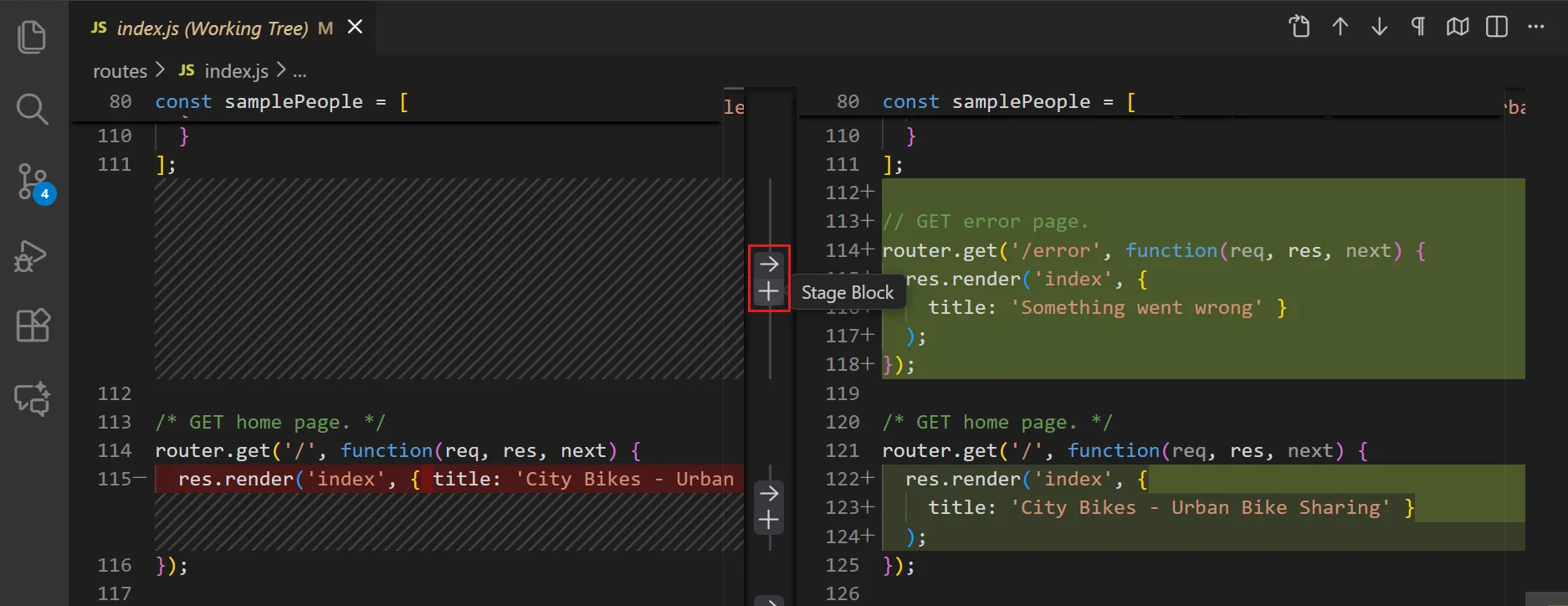
commit all your work with consice and clean commit i would suject you to use vscode to select you files or line more easly see below
Commited secret ?
Okay that bad… What can you do about it ? Hopefully for you there is this project that can help you.
Git filter-repo can rewrite repo history, but you have to be care full to not fuck up worse. First you have to install it it not a Git feature check out the github repo here.
You just realise that you have commited a sensitive data like an API keys into the github public repo. First thing that you should do is change the key, then and only then remote is for the history. If you don’t use the invert path the filter will remove everyything exepect the file specify.
git filter-repo --path secrets.env --invert-pathsIf is in you code you will need a file replacements.txt.
TOP_SECRET==>REDACTEDgit filter-repo --replace-text replacements.txtAfter the change you will need to rewrite all the project, everyone will need to reclone it or reset.
# rewrite
git push --force --all
git push --force --tagsgit push

# others will need to
git fetch --all
git reset --hard origin/main
Configuration
you can configure your Git, with order of priority:
.git/cofig~/.gitconfig/etc/gitconfig
example of configuration file
[user]
    name = Guillaume Dorschner

[init]
    defaultBranch = main

[pull]
    rebase = false

[push]
    autoSetupRemote = true

[url "git@github.com:"]
    insteadOf = https://github.com/

[core]
    excludesFile = ~/.gitignore_global

[filter "lfs"]
    required = true
    clean = git-lfs clean -- %f
    smudge = git-lfs smudge -- %f
    process = git-lfs filter-process

[include]
    path = ~/.gitconfig-personal

[includeIf "gitdir:~/work/"]
    path = ~/.gitconfig-work
you can even have a specific config for work and passe any other config ther from me is only the email.
work.
[user]
    email = guillaume.dorschner@company.com
personal
[user]
    email = guillaume.dorschner@personal.com
i sometime use a mac so i really need to disable tracing .DS_Store you can put others in this file ~/.gitignore_global:
.DS_StoreGit LFS
Git LFS (large file storage) an extension that replaces large files with small pointer files to the LFS Server. This prevents repository bloat and keeps clone/pull operations fast. Git itself is inefficient with large, frequently changing binary files because it stores full snapshots.
Install the extension:
# add the extension
git lfs install

# add files for LFS to tack
git lfs track "*.psd"
git lfs track "*.mp4"

# update attribut
git add .gitattributes
git commit -m "track files with LFS"
When you edit the large file you will need to lock it so developper don’t update file in the same time.
git lfs lock img/photo1.png
git lfs unlock img/photo.png
git lfs locks # return the list of lock files
If you repo have large file you can migrate to Git lfs to rewrite Git history.
Feed of change
Your just comming back from holidays and there have been a lot of change you can quickly see these change with:
git whatchanged --since="2 weeks ago"We should clean up in this repo 🧹
git clean remove all the untracked files from your working tree. Your project became a mess everywhere because of you messiess or bulid or other… It will not remove untrack folder unless you use the -d option, there is also the --dry-run and -X remove ignored Git files.
AI and Git hand in hand
I’m not a big fan of LLM but if you use them this video have a very interesing workflow for the vibecoder check out this video.
Cool but NOT that usefull
There is a list of cool but not that interesting things:
rerere: automatically reuses previous merge conflict resolutions when the same conflicts appear againshallow clone: clones only recent history to reduce download size (—depth)sparse checkout: checks out only a subset of the repository working tree
Reading
lots of infos came from the Git documentation and Oreilly Version Control with Git the former was a great help.